How do I install the app on my iOS device?
Financial Cockpit in your pocket. Manage your budget and investments anywhere. And it's free!


ProjXplorer's iPhone app will be available on the App Store very soon. But you don't have to wait: you can install the web version of the app with exactly the same features on your iPhone in about a minute like a real app.
Why PWA?
My App Store application for ProjXplorer's iOS app is ongoing, but the review process is taking longer than expected.
To prevent iPhone users from having to wait, I developed a PWA version that offers exactly the same experience as the mobile app.
PWA (Progressive Web App) is a website that can be added from the browser to the home screen and works like an application.
You don't need to download it from the App Store, it takes up almost no space on your phone, it stands on the home screen with its own icon, and opens in full screen without browser bars.
I will also notify you when the app is released on the App Store.
Before you begin
- Use Safari. The steps in this guide are for Safari, the iPhone's own browser.
- iOS version: Screenshots taken from iOS 26. You can find the differences in older versions in the Frequently Asked Questions section.
- Internet connection: All you need to do is connect to the internet during installation. No account or payment information is required.
Step-by-step setup
Installation is completed in 7 steps. The two places where readers get stuck the most are steps 3 and 5; pay special attention to them.
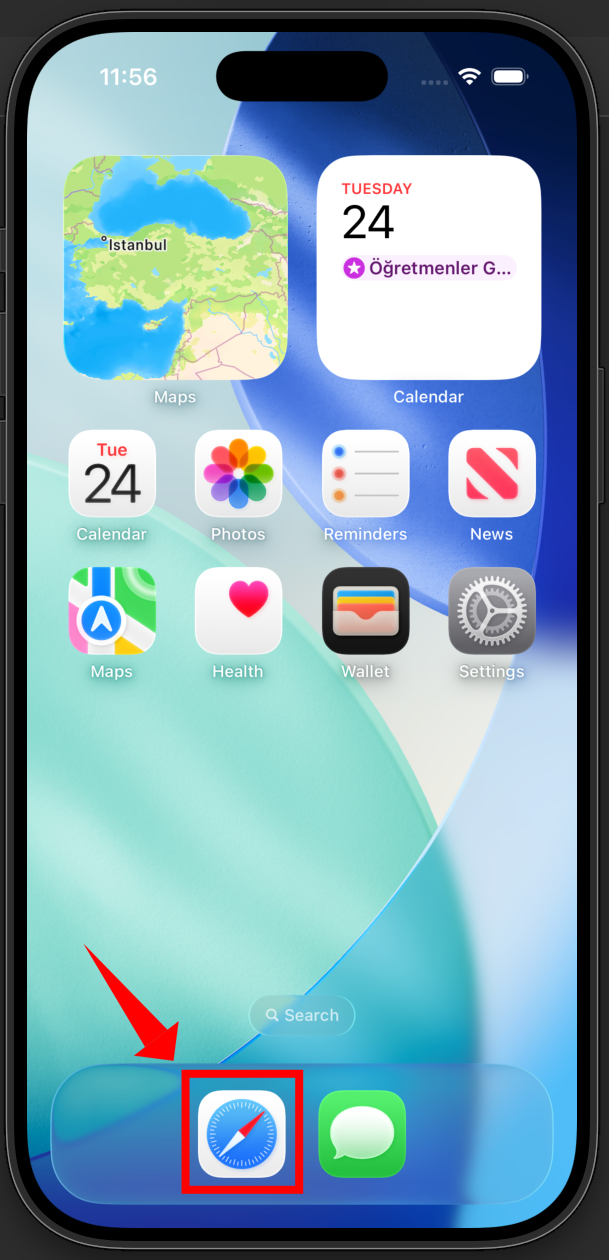
Step 1: Open the projxplorer.com address in Safari
Open Safari, type projxplorer.com in the address bar at the bottom, and go to the page.
Step 2: Turn off the cookie notification
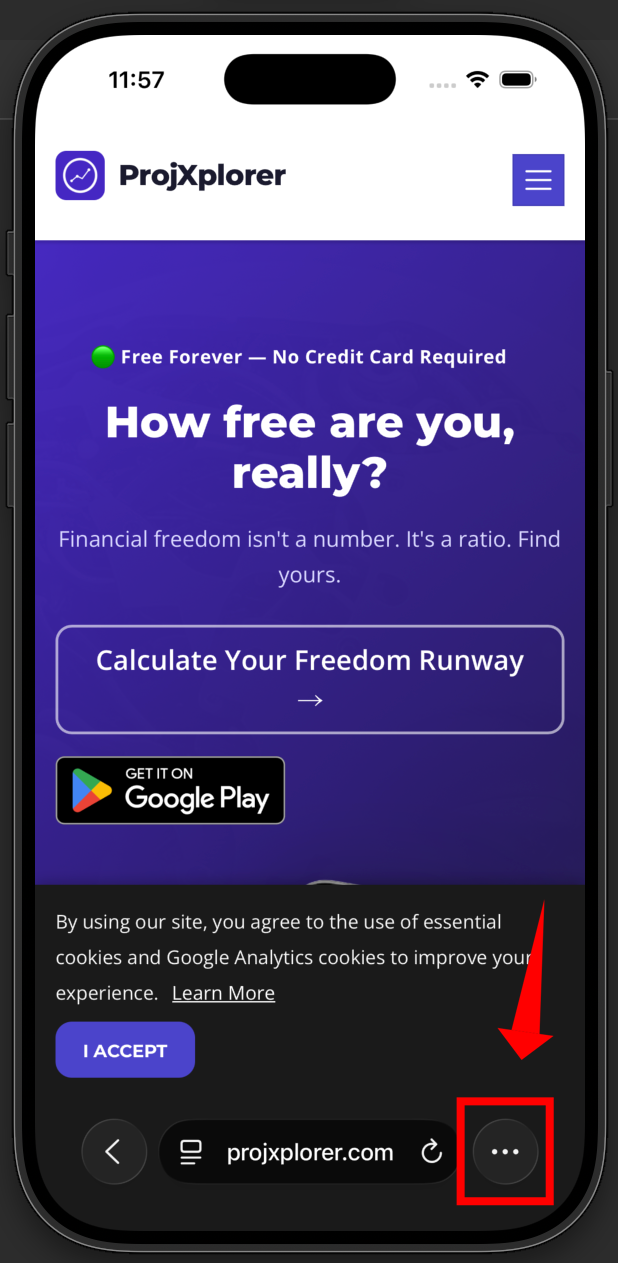
A cookie notice appears at the bottom of the page. Turn it off by tapping the ACCEPT button.
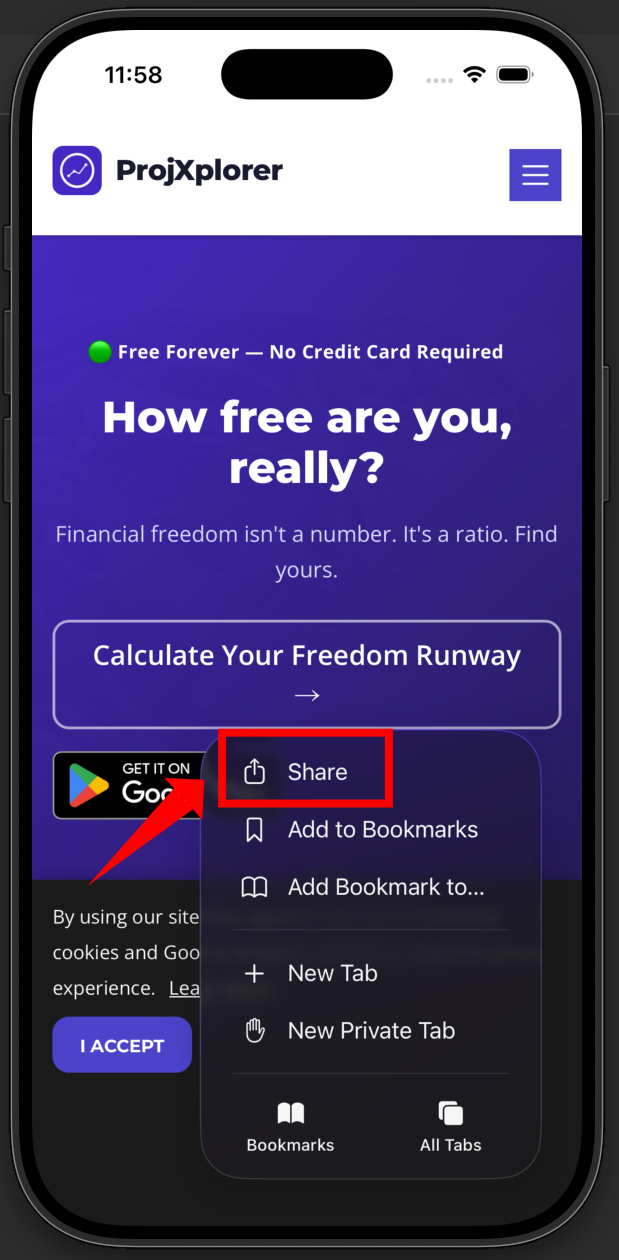
Step 3: Tap the three-dot (•••) menu
Tap the ••• button just to the right of the address bar.
Step 4: Select Share
You will see the Share option at the top of the dropdown menu.
Attention: In older iOS versions, the Share icon was located directly in the bottom bar. In iOS 26, this was moved into the menu.
Tap Share from the menu. At the top of the Share screen, the ProjXplorer logo and the heading "Financial Freedom Board" appear.
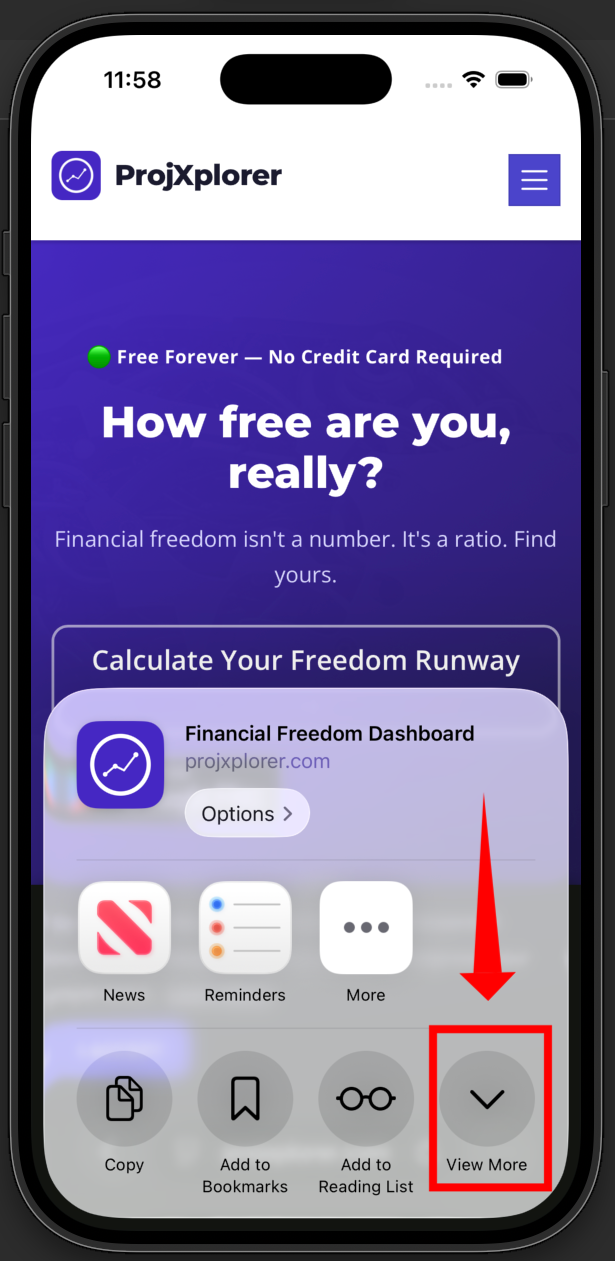
Step 5: Turn on the "More" button at the bottom
Tap the ⌄ (down arrow) More button to the right of the bottom row.
Attention: There are two "More" buttons on the screen. The one marked with ••• in the middle is for applications. The correct button, the one with the downward arrow at the bottom.
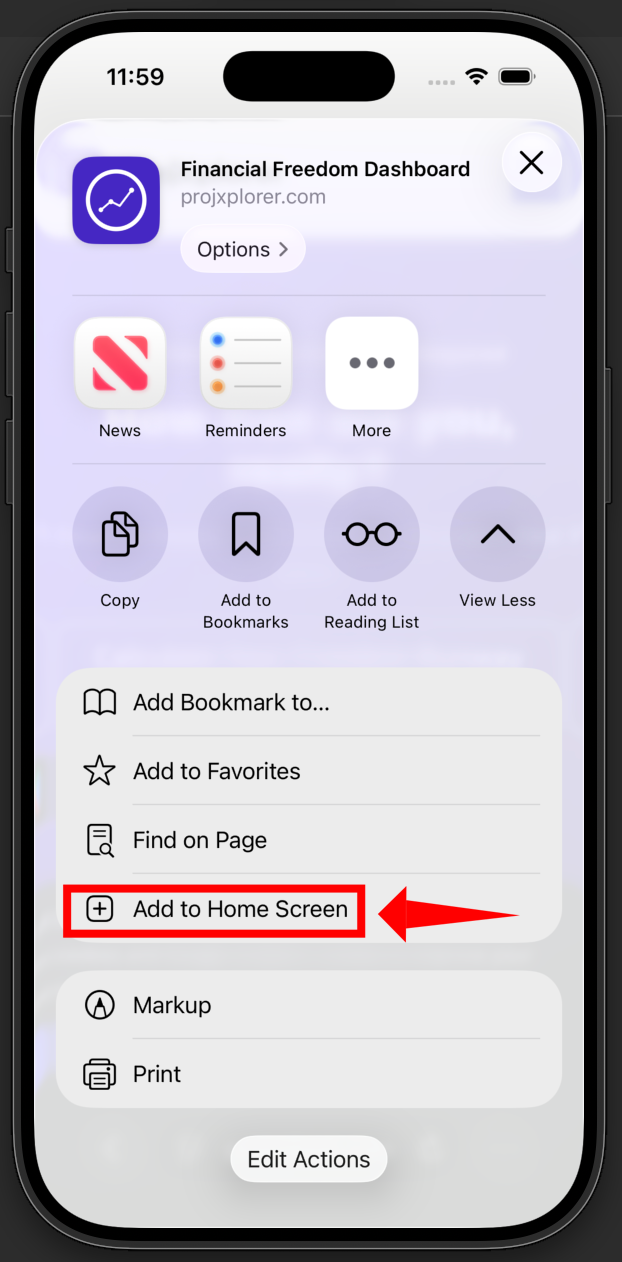
Step 6: Tap "Add to Home Screen"
In the dropdown list, tap the Add to Home line in the action list.
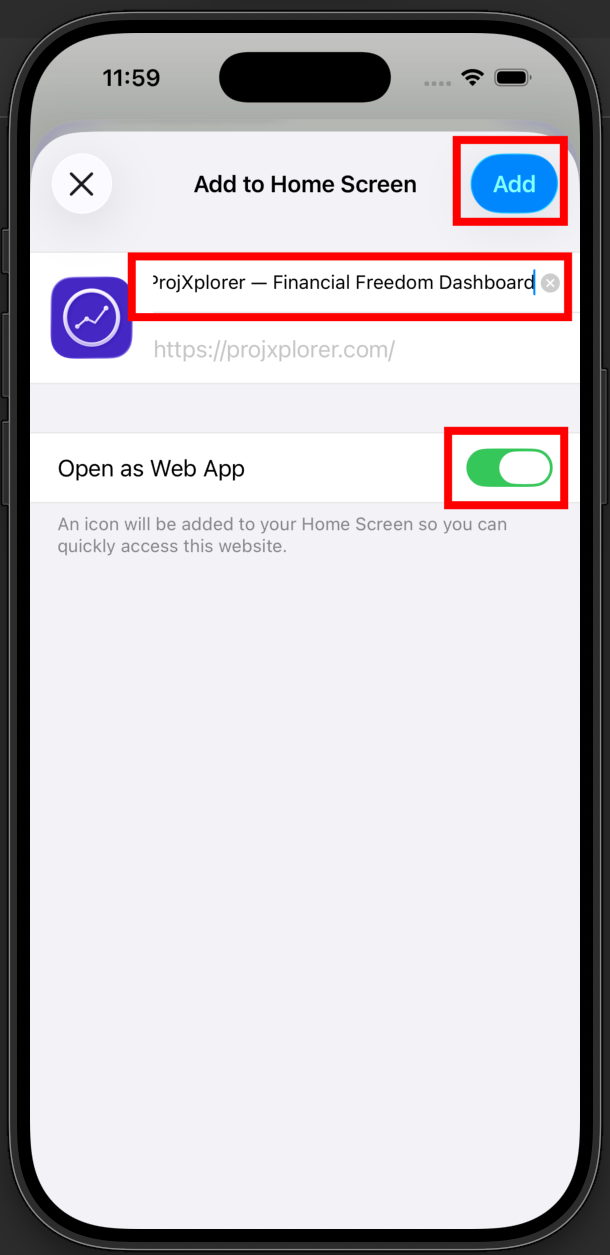
Step 7: Check and add settings
Look at two things on the confirmation screen that opens:
- Name: If you wish, shorten the app's name to ProjXplorer. The long name appears as a cut on the main screen.
- Open as a Web App: Make sure this switch is on (green). Thus, ProjXplorer works in full screen without Safari bars.
Finally, tap the blue Add button at the top right.
Open the app
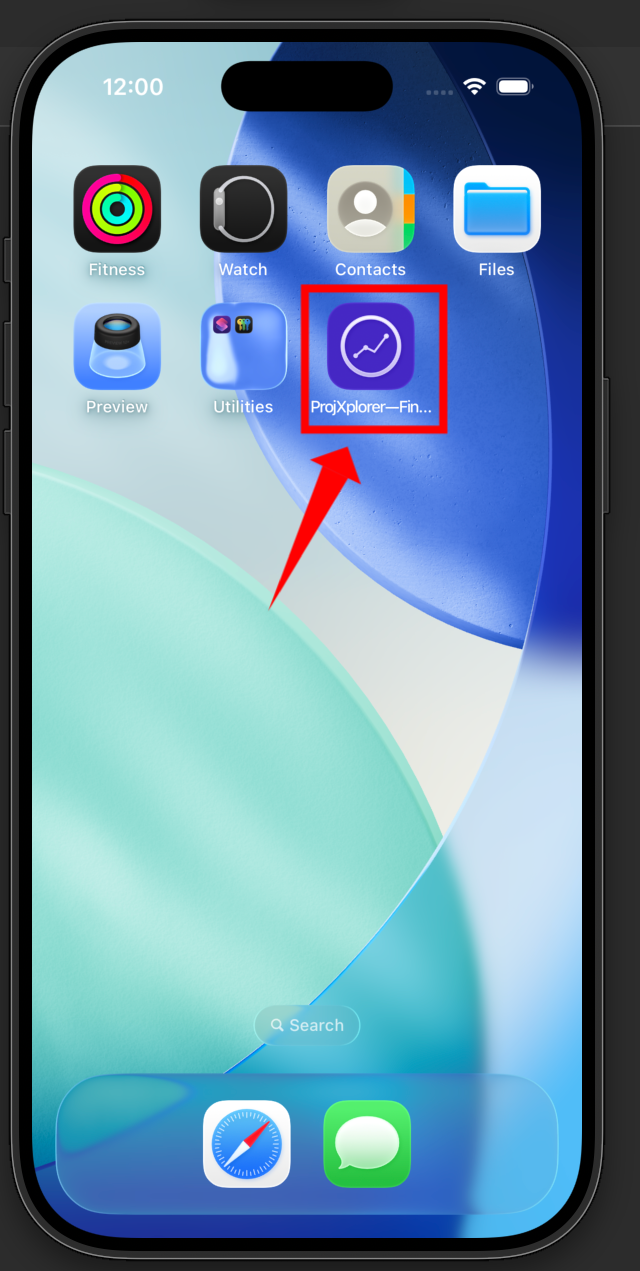
When you tap Add, the iPhone returns to the home screen and the ProjXplorer icon moves among your other apps. When you tap the icon, the app opens in full screen without Safari's address bar. You can now start following your journey to financial freedom.
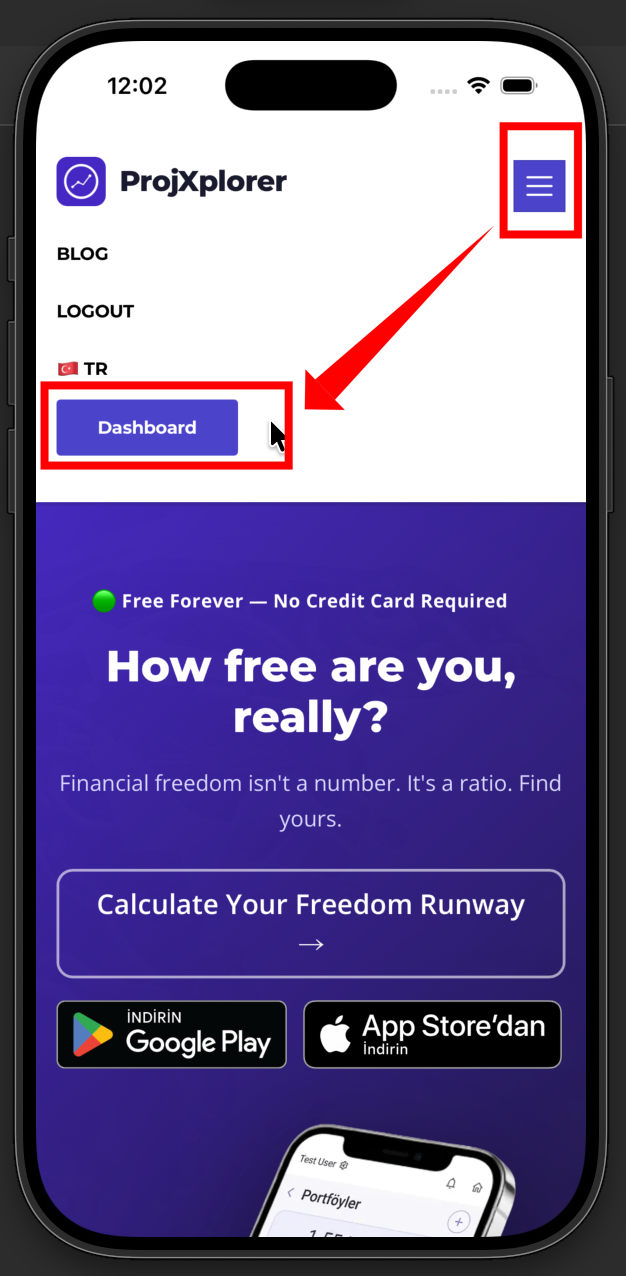
When you first open the app, you can access the homepage link by clicking the hamburger menu button at the top right.
Your password is valid for the web, PWA, and the soon-to-be-released Apple App Store, and you can access your account from all of them.